



Do you have a WAV file to convert to MP3? This tutorial will show you how to do it on VLC Media Player.
Why Convert WAV to MP3?
Here are some common reasons why it’s advisable to convert WAV to MP3.
Benefits
MP3 is well-known for its manageable file size. File size is important when you’re using audio files on devices with limited storage space.
In a given space, you can store more MP3 files than WAV files.
That said, MP3 files are easier to share and even stream online.
Although MP3 files are compressed to reduce file size, they still offer decent audio quality.
WAV files offer lossless audio quality. Their drawback is large file sizes. They take up about 10MB per minute of WAV audio. As WAV files have higher audio quality, they occupy a larger amount of space.
MP3 reduces file size anywhere from 75 to 95% after compression. It does this by removing audio data that is inaudible to humans.
It also has a standout advantage of being compatible with many digital devices.
Now that you know the benefits of converting WAV to MP3, let’s explore how to do it using VLC Media Player.
By using VLC, you don’t have to install a dedicated converter program on your computer.
You also don’t have to rely on an online converter when you don’t have an Internet connection.
Steps to Convert WAV to MP3 with VLC Media Player
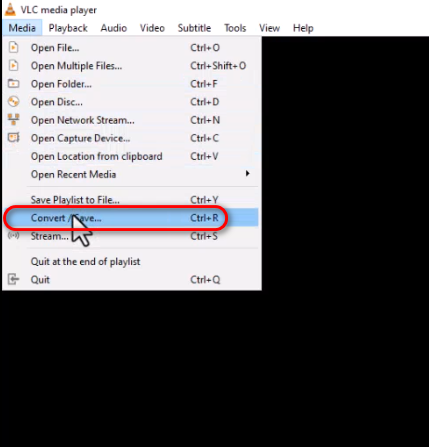
In VLC Media Player, click on the Media menu and select Convert/Save.
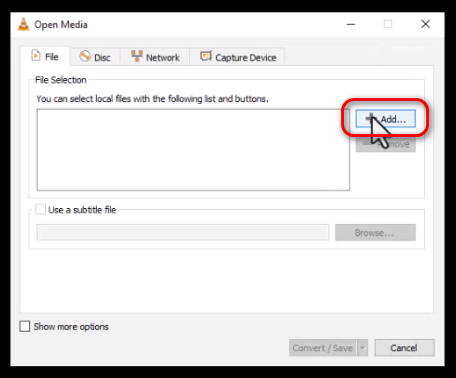
On the Open Media menu click on +Add.
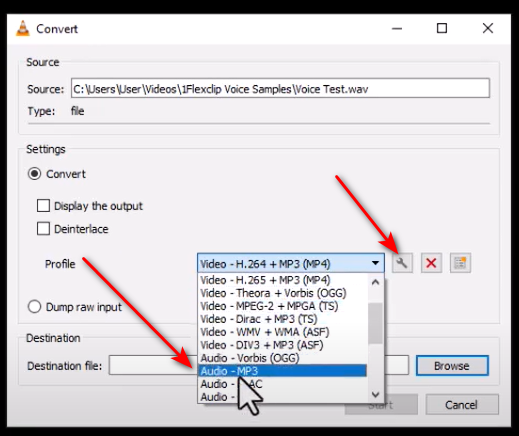
Then navigate to the file you want to convert. After importing it, select MP3 as your profile.
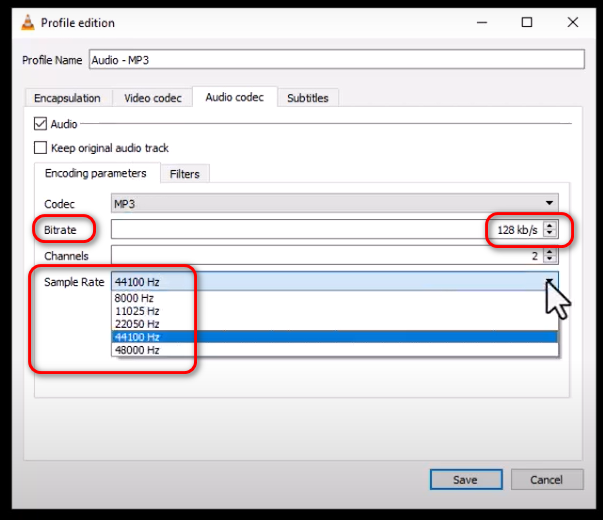
You may then want to click on the wrench icon for advanced audio settings.
On the next window, click on Audio codec.
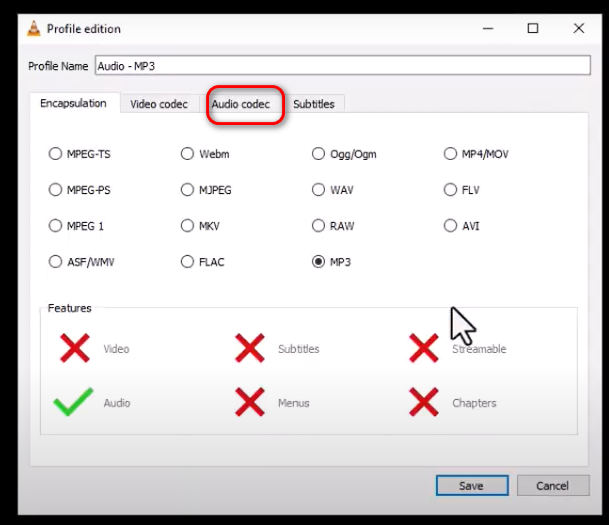
Change the bitrate and sample rate if you wish. Then hit Save.
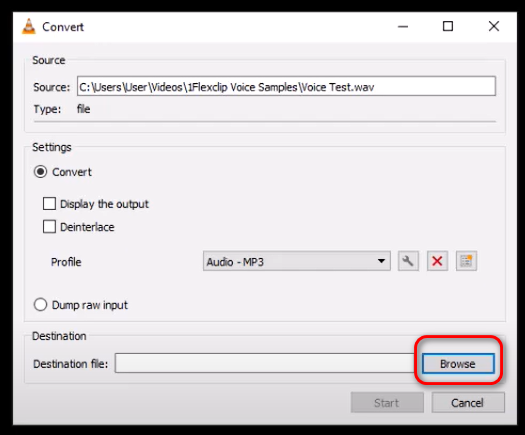
Next, click on Browse to set the destination file name and directory.
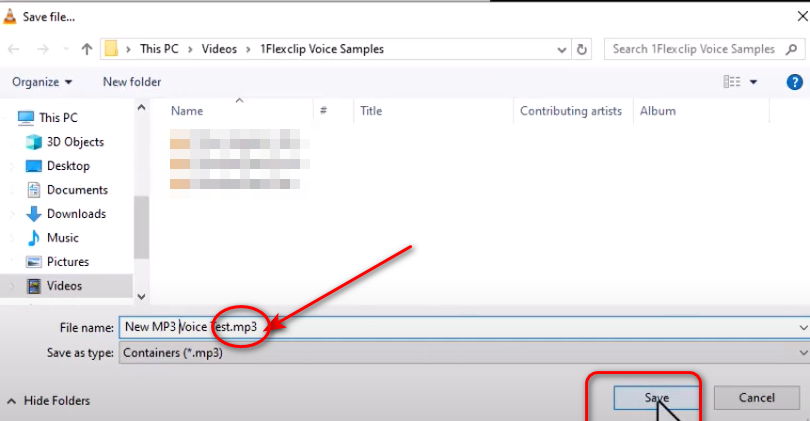
Make sure to include the .mp3 extension when naming your file. Then hit the save button.
Next, click the Start button to begin the file conversion.
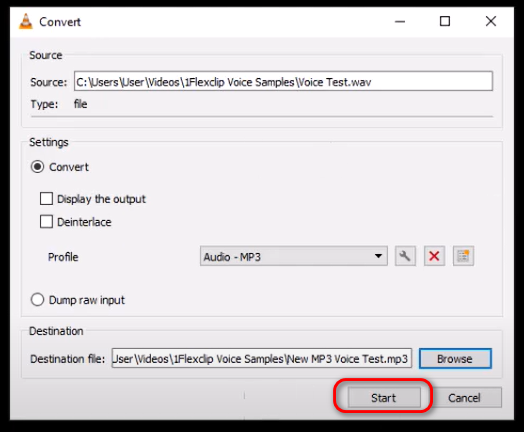
Wait for the conversion to be complete. Then check the file in the directory you have set.
Those were the steps to convert a WAV file to MP3 on VLC Media Player.
Video Guide
Watch the video below to see the above steps in action.
